
How to Upscale an Image
To upscale an image, run it through an AI upscaler that reconstructs detail rather than a plain resize that just makes pixels bigger. On a small or JPEG-mangled photo the difference is dramatic. But the honest framing matters more than the how-to: an upscaler invents plausible detail, it does not recover information your camera never captured. That distinction decides whether you will be delighted or disappointed, so this guide starts there.
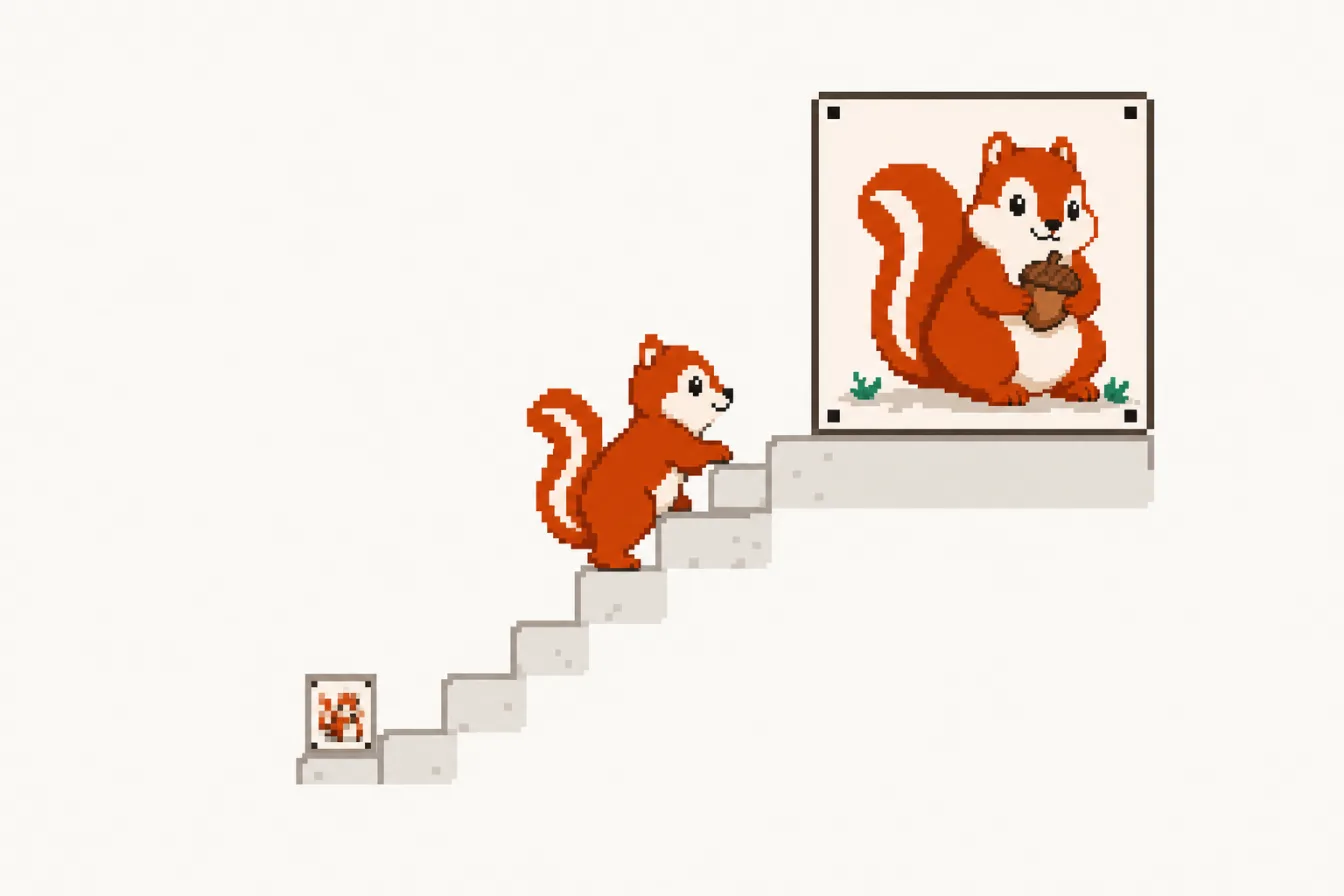
What upscaling actually does
Start here, because everything else follows from it.
A plain resize (bicubic, Lanczos, the thing your editor does when you type a bigger number) has one job: fill in new pixels by averaging nearby old ones. Blow up a 400 pixel photo to 1600 and you get a 1600 pixel photo that looks like a blurry 400 pixel photo. No detail is added, because averaging cannot add detail.
An AI upscaler does something different. It has seen millions of pairs of images: a sharp original, and a degraded small version of it. From those pairs it learned what kinds of degradation happen and what tends to sit underneath them. Given a blurry edge, it does not average. It produces the sharp edge that would most plausibly have produced that blur.
Read that again, because it contains both the power and the catch. The model outputs what is plausible, not what is true.
What it cannot do
There is a scene in nearly every crime show where someone says "enhance" at a security monitor and a face resolves out of four grey pixels. That is not real. It is not "not real yet". It is not real the way perpetual motion is not real, and the reason is worth understanding.
The information is not there. If a license plate occupies six pixels, the digits were never recorded. No amount of processing recovers them, because the recovery target does not exist in the file. What a model can do is produce a plate that would downscale to those six pixels. Many different plates would. The model picks the most likely-looking one, and it will look crisp and confident and it will be made up.
This has real consequences:
- Never use an upscaled image as evidence. Not a plate, not a face, not a document number. The output is a hypothesis rendered at high resolution, and high resolution reads as authority to the human eye. That is a trap.
- Small text will be confidently wrong. If text in your source is too small to read, the upscaler produces sharp letters. They may not be your letters.
- Faces get invented. More below, because it is the most common disappointment.
An upscaler makes an image look better at a larger size. It does not find out what was in the scene.
Which images upscale well
The model was trained to reverse specific kinds of damage, so it is good at those and mediocre elsewhere. Working with the training rather than against it is most of the skill here.
Works well:
- Images that were downscaled. Precisely the operation the model learned to invert. A photo that was 3000 pixels, got resized to 500 by some app, and is now all you have: the ideal case.
- JPEG-compressed images. Blocking, ringing, mushy 8x8 squares in flat areas. Compression artifacts were part of the model's training degradations, so a twice-forwarded meme cleans up better than you would expect.
- Small but sharp images. Old avatars, thumbnails, sprites, product shots from a 2009 web store. Real edges are present, just few of them.
- Scans of old photos, especially chained with colorizing.
Works badly:
- Motion blur. The model does not fix this. It sharpens the blur into a crisper-looking blur. Deblurring is a different task needing a different model, and a harder one: motion smears information across pixels in a direction the model has to infer.
- Out of focus shots. Same story. Missed focus is not low resolution. You get a bigger out-of-focus photo with more convincing texture on top.
- Heavily denoised images. Aggressive noise reduction, the kind phones apply in low light, wipes out fine texture and leaves a waxy surface. The model has nothing to work from and amplifies the wax.
- Images that are already large and sharp. Nothing to reconstruct.
The pattern: upscalers reverse losses of resolution, not losses of focus. Those look similar to your eye and are completely different problems.
2x or 4x?
The model is a 4x model and always runs at 4x internally. When you pick 2x we run the same model and scale the result back down by half.
That sounds wasteful. It is usually better. Downscaling the 4x output averages away some of the model's invented texture, so the result is often cleaner and more natural than a dedicated 2x model gives you on photographs. You get the edge reconstruction without quite as much of the enthusiasm.
- Use 4x when the source is genuinely small (under about 800 pixels on the long side) and you need real size. A 400 pixel image at 4x is 1600 pixels, which is a usable web image.
- Use 2x for mid-sized sources, anything with skin or faces, or whenever 4x looks overcooked.
- Do the arithmetic first. 4x multiplies pixel count by 16, not 4. A 2000x1500 photo (3 megapixels) becomes 8000x6000, which is 48 megapixels: a large file, a slow run, and a lot of browser memory for a result you may not need.
If unsure, run 2x. It is faster and harder to get wrong.
The detail vs smoothing slider
The model takes a denoising control, and we expose it as a detail vs smoothing slider. It is the one control worth learning.
Toward detail, the model preserves more fine, high-frequency content: fabric weave, skin pores, film grain. It also preserves noise and compression artifacts, because it cannot always tell the grain you want from the grain you do not.
Toward smoothing, that content is suppressed. Artifacts go away. So does real texture, and past a point everything takes on an airbrushed look.
- Clean source, good light, low ISO? Toward detail. Little noise to amplify, real texture to keep.
- Heavily compressed JPEG, screenshot of a screenshot? Toward smoothing. The artifacts are worse than the texture loss.
- Noisy high-ISO photo? Middle, leaning smooth. Grain sharpened by an upscaler looks like a rash.
- Portrait? Toward smoothing, and expect to compromise.
Run it twice and compare at 100% zoom. This is a slider you judge with your eyes, not one with a correct value.
Faces are the known weak spot
Generic upscalers are bad at faces, and this is where most people are disappointed.
The reason is not that faces are visually complicated. It is that you are an expert on faces in a way you are not an expert on brick walls. When an upscaler invents plausible-but-wrong texture on a brick wall, you see a brick wall. When it does the same on your grandmother's face, you see that something is off, immediately, even if you cannot say what.
Our upscaler is general purpose. It does not know what a face is. It sees edges and textures and reconstructs them with the same statistics it would use for anything else, which on a small face means waxy skin, smeared eyes, and a subtly wrong mouth.
What to do:
- Use 2x rather than 4x on portraits, and push the slider toward smoothing. Waxy is less disturbing than wrong-textured.
- Accept that a face occupying 60 pixels is not coming back. Dedicated face restoration models exist and are a different tool with their own failure mode: they produce a face that is sharp and plausible and is not quite the person, which for a family photo is arguably worse than blur.
Why we tile, and where memory runs out
Running a neural network on an 8000x6000 image in one pass needs many gigabytes of memory at once, in a browser tab. That does not work.
So we tile: the image is cut into overlapping tiles and each one goes through the model separately. The overlap matters, because a model behaves differently near a tile's boundary, where it has no context beyond the edge and has to guess. Butt tiles together without overlap and you get a visible grid of seams.
What we do with that overlap is worth a sentence, because the obvious approach is the wrong one. We feed the model a margin of extra context around each tile and then discard that margin, keeping only the core where the model could see in every direction. The tempting alternative is to blend the overlapping regions together with a feathered edge, but that averages two different guesses about the same pixels and leaves a soft band along every seam. Cropping the margin away instead means each output pixel comes from exactly one tile that had full context, and the seams genuinely disappear rather than being smudged over.
Tiling is what makes browser-based upscaling possible at all, and it is why this is the slowest tool here: a 4x pass can be hundreds of model runs, not one.
The memory ceiling is real. The WASM runtime tops out around 2 GB, a limit of the runtime rather than a policy we chose, and the output lives in memory as raw pixels rather than a compressed file: an 8000x6000 RGBA image is about 192 MB before the model's working memory. We cap input size based on what your device reports and warn you first. To go bigger, upscale a crop of the region you care about rather than the whole frame.
Speed, and why WebGPU matters
Same model, same result, wildly different wait.
With WebGPU (Chrome and Edge on desktop, mostly) the model runs on your GPU, which is built for this math. Without it we fall back to WebAssembly on your CPU, which works but is much slower: roughly 5x to 60x depending on the machine. For the upscaler, with its hundreds of tiles, that is the difference between waiting and giving up. If it feels unusably slow, check your backend before concluding the tool is broken. We break it down in what WebGPU means for image tools.
One nice consequence of running locally: the upscaling model is by far the lightest one on this site, so the first-run download is quick, and it is cached after that. The upscaler works offline once you have run it once.
Chaining it with other tools
Upscaling is often the last step, not the only one.
Restoring an old photo is the clearest case. Colorize first, then upscale. The order matters: the colorizer works from structure, and upscaling first can invent detail that misleads it. If there are scratches or tears, paint them out with the object remover before either. Repair, colorize, upscale. The whole chain is in how to restore an old photo.
Cutouts. If you are cutting a small product shot out of its background and need it larger, upscale first and cut second. The background remover computes its mask at a fixed working size internally, so a larger, cleaner input gives a better edge than upscaling a cutout whose edge is already soft.
Nothing is uploaded
Every tool here runs the model inside your browser tab. Your image is read into memory, processed on your hardware, and gone when you close the tab. There is no upload endpoint on this site.
Check it yourself: open developer tools, watch the Network tab, run the upscaler. The model comes down. Your image does not go up. That is verifiable in thirty seconds, which is worth more than a privacy policy. Every model we ship is permissively licensed, because an ad-supported site cannot do otherwise. There is more on how private this is.
Frequently asked questions
Can AI upscaling recover detail that was lost?
No. It reconstructs plausible detail, which is a different thing. The model produces an output that would plausibly downscale to your input, and many different outputs would satisfy that. It picks the most likely-looking one. On texture and edges this is usually close enough to be genuinely useful. On specifics like small text, a distant face, or a license plate, the result is confident and invented. Never treat an upscaled image as evidence.
Will an upscaler fix a blurry photo?
Not if the blur is from motion or missed focus. The model was trained to reverse downscaling and JPEG compression, so it is very good at those and does not address blur at all. It will sharpen the blur into a crisper-looking blur. Fixing motion blur requires a deblurring model, which is a different tool solving a different problem. If your photo is small, an upscaler helps. If it is out of focus, it does not.
Should I upscale 2x or 4x?
Use 4x when the source is genuinely small, under about 800 pixels on the long side, and you need real size. Use 2x for mid-sized images, for anything with faces in it, or whenever 4x looks overcooked. Remember that 4x multiplies your pixel count by 16: a 3 megapixel photo becomes a 48 megapixel one, which is slow and large. When in doubt, 2x.
What does the detail vs smoothing slider do?
It controls how hard the model works to suppress noise. Toward detail, more fine high-frequency content survives, including both real texture and noise and compression artifacts. Toward smoothing, that content is suppressed, which removes artifacts and also removes real texture, eventually giving an airbrushed look. Clean sources want detail; compressed or noisy sources want smoothing; portraits generally want smoothing.
Why are faces blurry or strange after upscaling?
The upscaler is a general model with no concept of a face. It reconstructs facial texture with the same statistics it uses for any surface, producing waxy skin and smeared eyes on small faces. You are also far more sensitive to errors in faces than in anything else, so the same amount of invented detail that looks fine on a brick wall looks wrong on a person. Use 2x and lean toward smoothing on portraits.
What is the biggest image I can upscale in a browser?
It depends on your device and backend, and we cap the input based on what your device reports and warn you before you hit the limit. The hard ceiling is the WASM runtime's roughly 2 GB memory budget. Bear in mind the output lives in memory as raw pixels: an 8000x6000 result is about 192 MB before any of the model's working memory. If you need more, upscale a crop of the region you care about rather than the entire frame.
Why is upscaling slower than the other tools here?
Because it runs the model once per tile, and a 4x pass on a large image can be hundreds of tiles. Tiling exists so the job fits in a browser's memory at all. The other big factor is your backend: WebGPU runs on your GPU, WASM runs on your CPU, and the gap is roughly 5x to 60x for identical output. Chrome and Edge on desktop generally have WebGPU; other browsers lag.